












Employee Point Master
Overview
The Point Master module in Semsto allows administrators to define and manage the points-based system for employee performance, achievements, or activities.
It acts as the central configuration panel for assigning positive or negative points related to employee skills, behaviors or performance metrics.
Main Screen Point Master List
When you open the Point Master screen, you can see a summarized view of all the defined point actions.
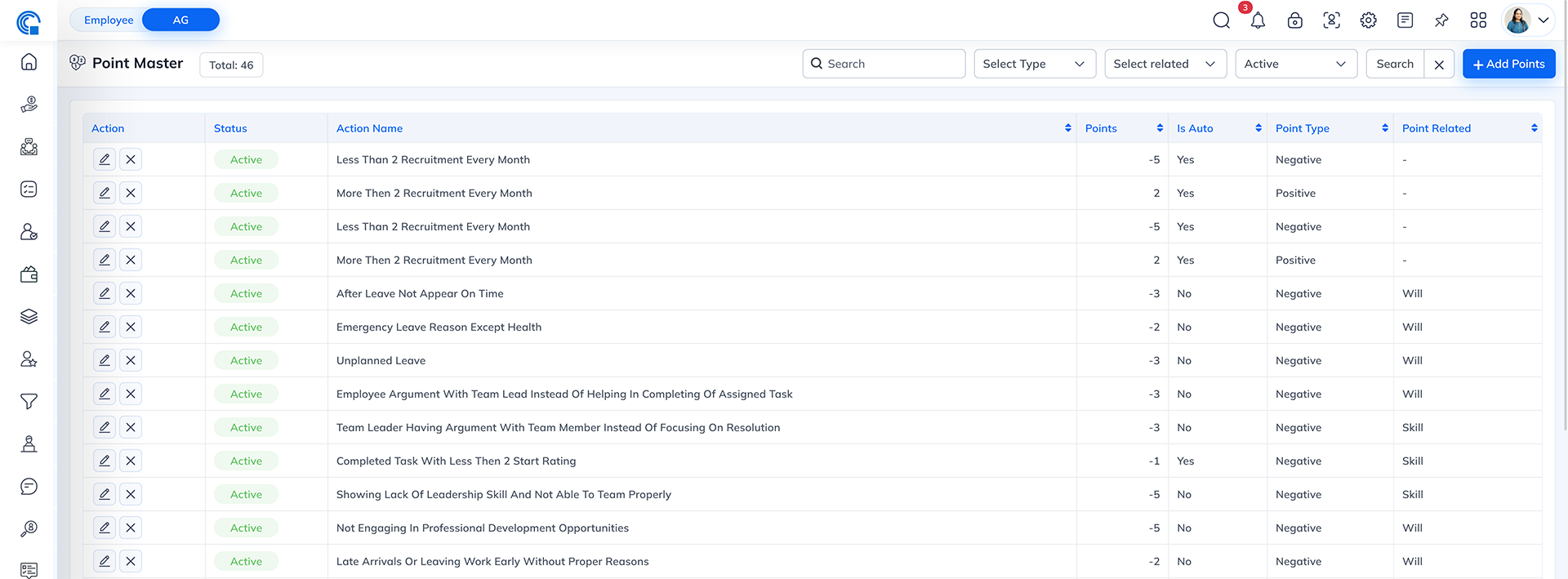
| Column Name | Description |
|---|---|
| Action | Allows you to edit  or delete or delete  an existing point rule. an existing point rule. |
| Status | Indicates whether the point rule is currently active or inactive. |
| Action Name | Name of the activity or behavior associated with the point (e.g., “Extraordinary Contribution in Company Growth”). |
| Points | Numeric value assigned to the action (positive or negative). |
| Is Auto | Indicates if the point is assigned automatically (Yes/No). |
| Point Type | Type of point: Positive or Negative. |
| Point Related | Specifies the category or area the point relates to (e.g., Skill, Will, or general). |
Available Controls
- Search Bar: Quickly find an action by name.
- Select Type & Related Filters: Filter records based on point type or category.
- Active/Inactive Filter: View only active or inactive point rules.
- Add Points Button: Opens the form to create a new point rule.
- Pagination Controls: Navigate between pages of records.
Add Point Master Form

When you click "+ Add Points", a pop-up form appears allowing you to
create a new point rule.
Fields Description
| Field | Type | Description |
|---|---|---|
| Action Name | Text Field | Enter the descriptive name of the action (e.g., “On-time Task Completion”). |
| Point Type | Dropdown | Choose whether the action gives Positive or Negative points. |
| Point Related | Dropdown | Select the category that the point belongs to, such as Skill, Will, or others defined by your system. |
| Points | Numeric Field | Enter the numeric value of points (e.g., 10 for positive contribution or -5 for delay). |
| Is Auto | Toggle Switch | Turn ON if the system should automatically allocate the points based on rules. Turn OFF for manual entry. User can create only point which are OFF, because to make it auto need to manage it from programming. |
| Status | Radio Buttons | Choose whether the rule is Active or Inactive. |
Form Buttons
| Button | Description |
|---|---|
| Save | Stores the new point record in the system. |
| Close | Closes the popup without saving changes. |
AUTO Point Example (System-Generated Points)
(This matches your first screenshot where “Is Auto = Yes”)
Example 1 - Auto Positive Point
- Action Name: Achieving 5 Star Rating on Task
- Points: +1
- Is Auto: Yes
- Point Type: Positive
- Point Related: Skill
How It Works:
Whenever an employee receives a 5-star rating on any task, the system will automatically add +1 point to
the employee's performance score. No HR or manager action is required.
Example 2 - Auto Negative Point
- Action Name: Less Than 2 Recruitment Every Month
- Points: -5
- Is Auto: Yes
- Point Type: Negative
- Point Related: -
How It Works:
If the system detects that a recruiter has completed fewer than 2 recruitments in the month, it will
automatically deduct 5 points from their performance score.
Example 3 - Auto Positive (Long-Term Achievement)
- Action Name: Successfully Completed 5 Years With Satisfied Performance
- Points: +20
- Is Auto: Yes
- Point Type: Positive
- Point Related: Will
How It Works:
Once an employee completes 5 years in the company (based on joining date) and their performance is not
negative, the system automatically awards +20 points.
Example 4 - Auto Positive (Monthly Attendance)
- Action Name: Consistent Present Of 3 Month Without Any Off
- Points: +2
- Is Auto: Yes
- Point Type: Positive
- Point Related: Will
How It Works:
If an employee marks full attendance (no leave or absence) for 3 consecutive months, the system
automatically adds +2 points.
These examples show that AUTO points are triggered by system conditions, without manual entry.
MANUAL Point Example (Manually Added by Manager/HR)
(These are NOT auto-generated. HR or Manager enters them during evaluation.)
Example 1 - Manual Positive Point
- Action Name: Appreciated by Client for Exceptional Work
- Points: +5
- Is Auto: No
- Point Type: Positive
- Point Related: Skill
How It Works:
If a client sends appreciation or positive feedback, the manager manually awards +5 points to the employee.
Example 2 - Manual Negative Point
- Action Name: Misbehavior or Violation of Company Policy
- Points: -10
- Is Auto: No
- Point Type: Negative
- Point Related: Will
How It Works:
If an employee violates rules (late repeatedly, misbehavior, etc.), HR manually deducts -10 points.
Example 3 - Manual Performance Contribution
- Action Name: Helping Team Members Complete Critical Tasks
- Points: +3
- Is Auto: No
- Point Type: Positive
- Point Related: Will
How It Works:
Manager manually gives +3 points based on teamwork contribution.
Example 4 - Manual Improvement Needed
- Action Name: Incorrect Task Submitted Multiple Times
- Points: -2
- Is Auto: No
- Point Type: Negative
- Point Related: Skill
How It Works:
If a manager notices repeated incorrect submissions, they manually deduct points.
Summary Table for Documentation
| Type | Example | How Points Are Added |
|---|---|---|
| Auto Point | Achieving 5-star rating | System automatically checks task rating and applies points |
| Auto Point | Attendance for 3 months | System calculates attendance and adds points |
| Manual Point | Client appreciation | Manager manually adds points during evaluation |
| Manual Point | Policy violation | HR manually deducts points |